restyle a photo
Turn your photo into a painting, anime, or pixel art.
Pick a photo, pick a style, tap once. DreamBot repaints the whole picture as a watercolor, an oil painting, an anime still, a comic panel, a colored-pencil drawing, 16-bit pixel art or a claymation character, and the person in it still looks like themselves.
It isn’t a filter laid over the top. An AI image model redraws the photo from scratch in the style you chose, which is why the brushwork, the pencil grain and the pixels reach all the way into the face and the background.
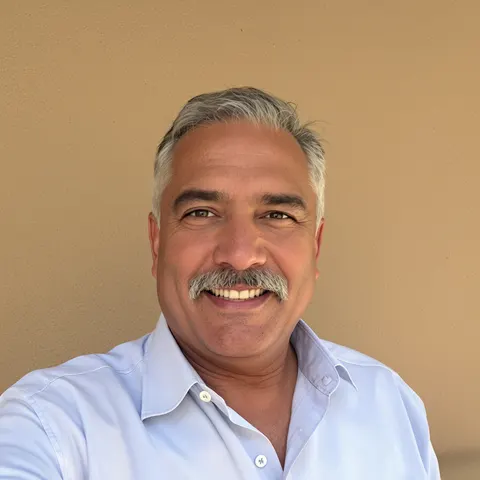
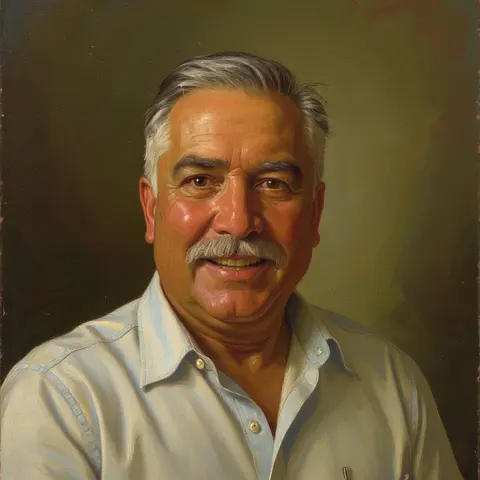
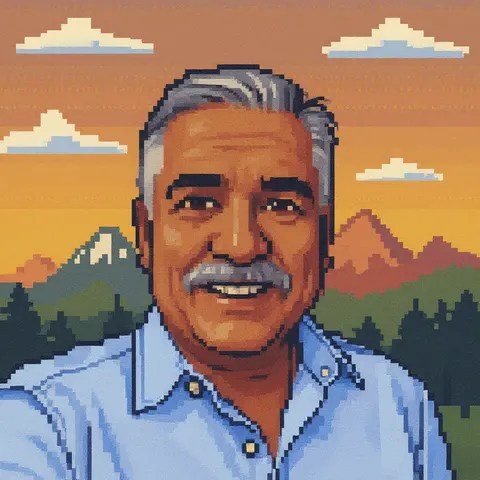
How it works
Add a photo
Open Create in DreamBot and add a photo from your camera roll. A clear, well-lit shot of one or two people works best.
Choose Restyle, then a style
Twelve styles, from watercolor and oil painting to anime, comics, pencil, pixel art and claymation. No prompt to write.
Tap once
DreamBot repaints the photo in that style. Try another style on the same photo whenever you like.
One photo, a dozen ways
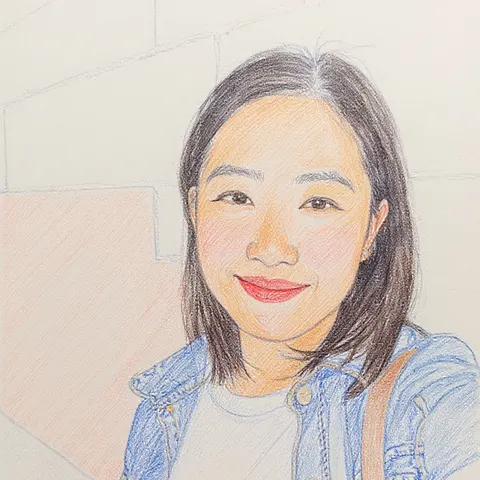
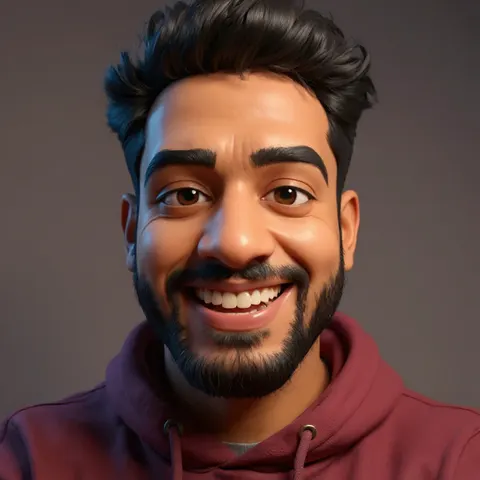
Everyday selfies, restyled in DreamBot. Each pair is the same photo going in; only the style changed.
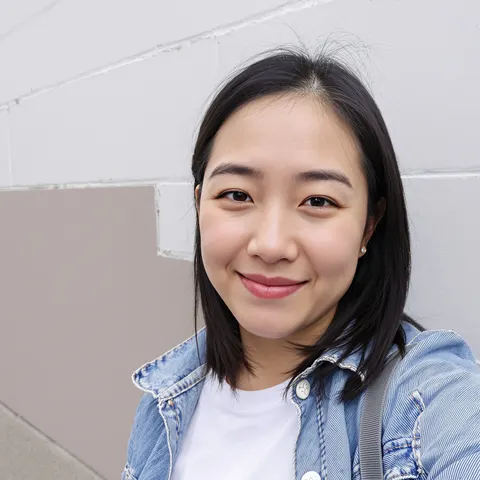
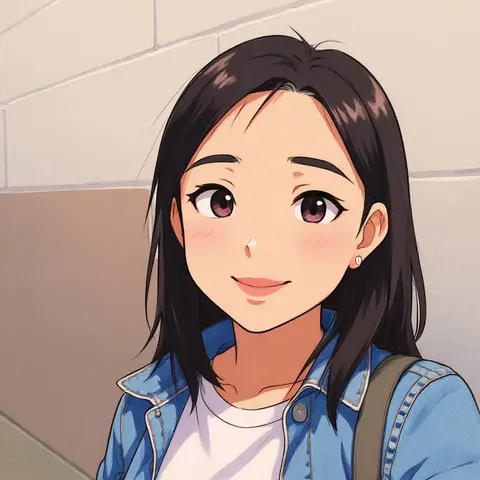
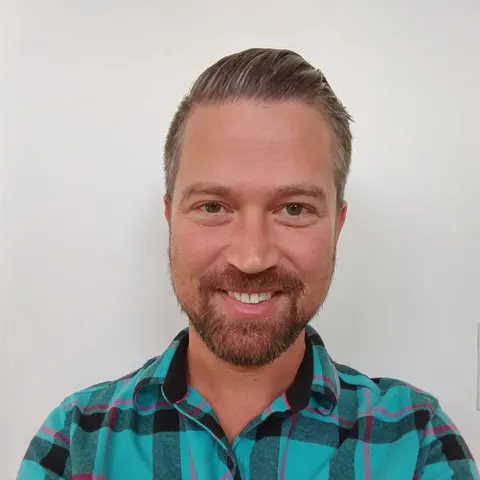

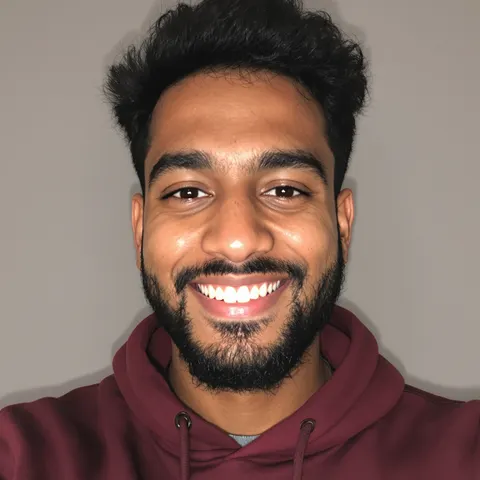
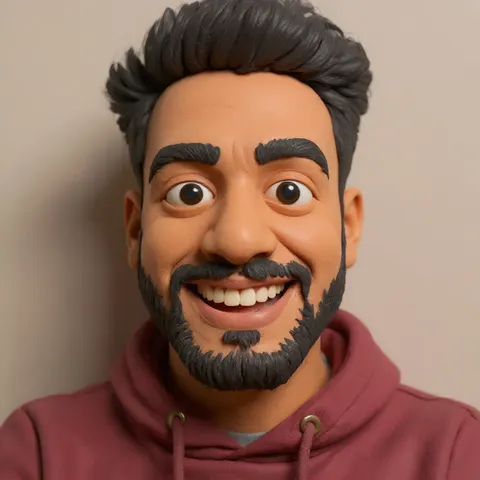
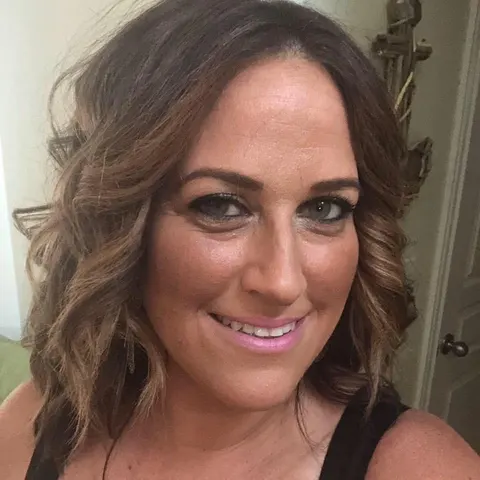
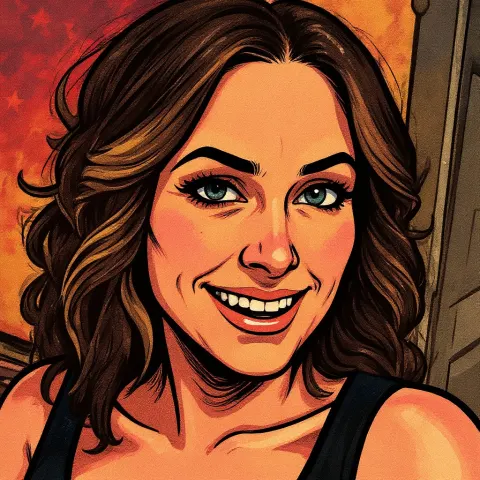
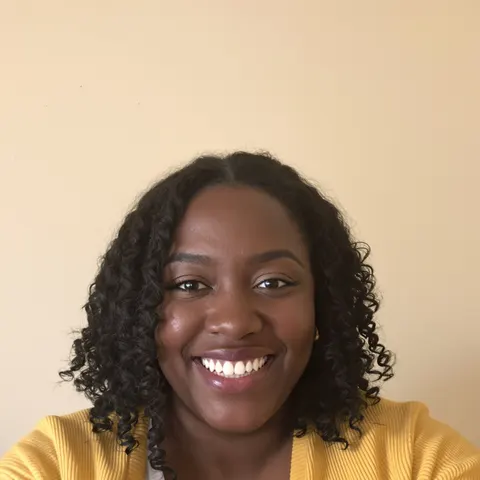
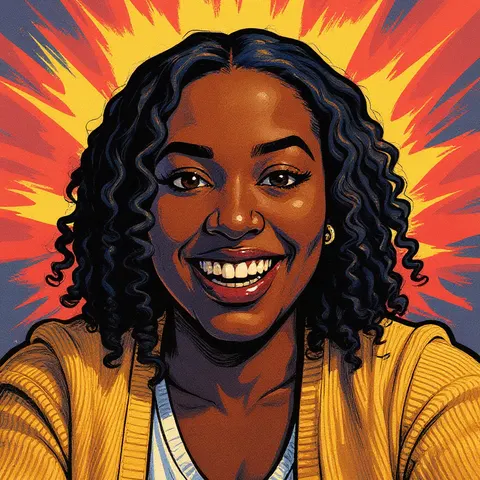
Twelve styles to try
- Watercolor: loose, luminous washes and soft paper grain.
- Canvas: a classical oil painting with visible brushwork.
- Illustration: a hand-drawn, painterly storybook look.
- Pencil: layered colored pencil with gentle crosshatching.
- Anime: cel-shaded skin, inked hair and a glowing anime background.
- Comics: bold ink lines and saturated comic-book color.
- Animation: you, as the lead in a 3D animated film.
- Pixels: a 16-bit pixel-art portrait with a retro game backdrop.
- Claymation: a stop-motion clay character, fingerprints and all.
- Bricks, Vinyl and Handcrafted: you as a toy-brick figure, a glossy collectible, or a handmade craft.
Tips for a great restyle
Faces carry the likeness, so start with a photo where they’re clear: good light, not too far away, nothing covering them. Portraits and couple shots restyle best.
Some styles flatter some photos more than others, so try two or three. And if likeness matters most, DreamBot offers a second, stronger restyle model to pick before you tap.
When you want more than your photo
Restyle keeps your photo’s scene. If you’d rather be somewhere else entirely, DreamBot’s nightly dreams paint you into a brand-new world every night, as a pirate, a royal or an elf (see AI fantasy portraits), and often with your favorite person beside you (see AI couple photos).
Questions people ask
Is this just a filter?
No. A filter tints and textures the pixels you already have. Restyle has an AI image model repaint the whole photo in the chosen style while keeping the person recognizable.
Do I need to write a prompt?
No. Add a photo, choose Restyle, pick a style and tap. The prompt box stays out of the way.
What kind of photo works best?
A sharp, well-lit photo of one or two people with their faces clearly visible. Group shots and tiny faces in the distance lose likeness.
Is it free?
DreamBot is free to download. Restyles, like everything you make in the studio, use Sparkles, the in-app currency. The App Store listing has current prices.
What happens to my photo?
It stays private to you, it’s never sold, and the AI services that process it don’t train on it. The details are in the privacy policy.
Your camera roll, repainted.
DreamBot is free on iPhone and iPad. Restyle a photo tonight, and wake up tomorrow to a dream with you in it.